
State Master Detail
Organizations may have their operations distributed in different States; user can define those States through this module. StateMaster also helps in defining Professional Tax, which can differ from State to State.
For e.g. Maharashtra, Gujarat, Karnataka, etc.
-
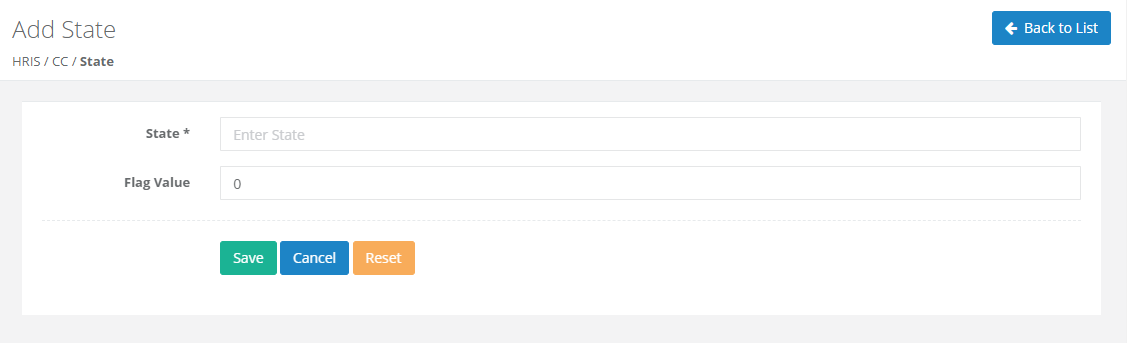
State
User can input the state name and same will be utilize in Branch Master.
-
Flag Value
User can input the value of flag for each State defined and same can be utilized in formula defined in Salary Head. Using these flag value user can control the Payment or Deduction or Provisional Calculation for any head as per the State Master.
-
Remark
User can add Remark from here.
-
Add/Import/Delete Master
1. ADD
For adding Single Entry User can add through State Master Create button.
HRIS -> CC -> State -> Create Button -> Enter State Name -> Fill the Required Fields -> Save

2. Import
For adding Multiple Entry User can add through State Master Import button User can Import Employee Master.
- Prepare file for data as mentioned in the sample file, save the excel file in .csv or .txt format.
- HRIS -> CC -> State -> Import Button
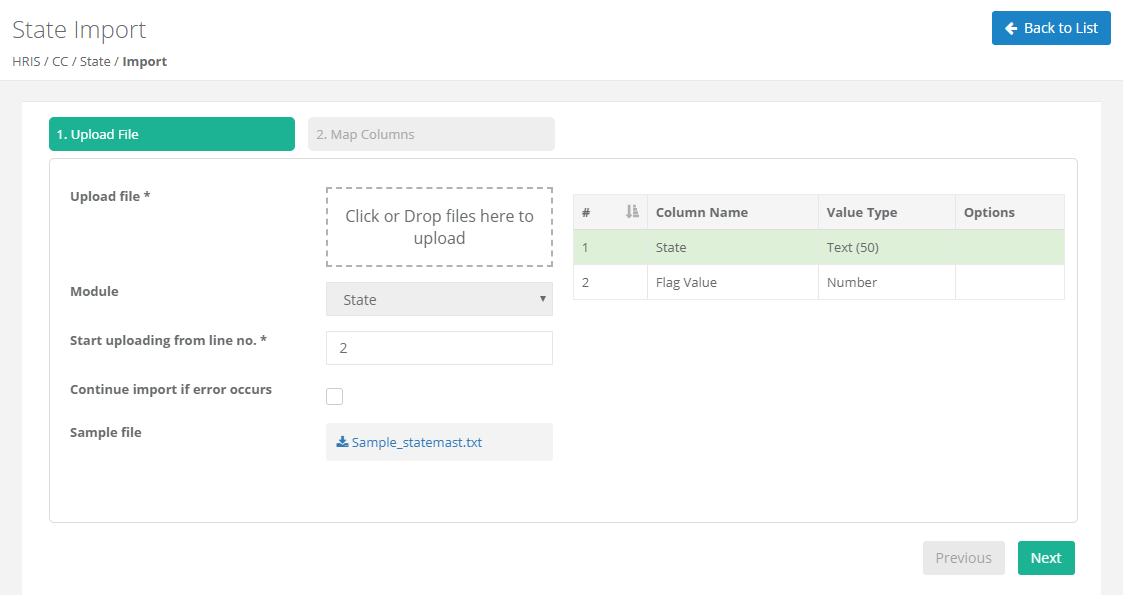
- Select file to import as prepared .csv/.txt -> Start Uploading from line no. 2 -> Next button
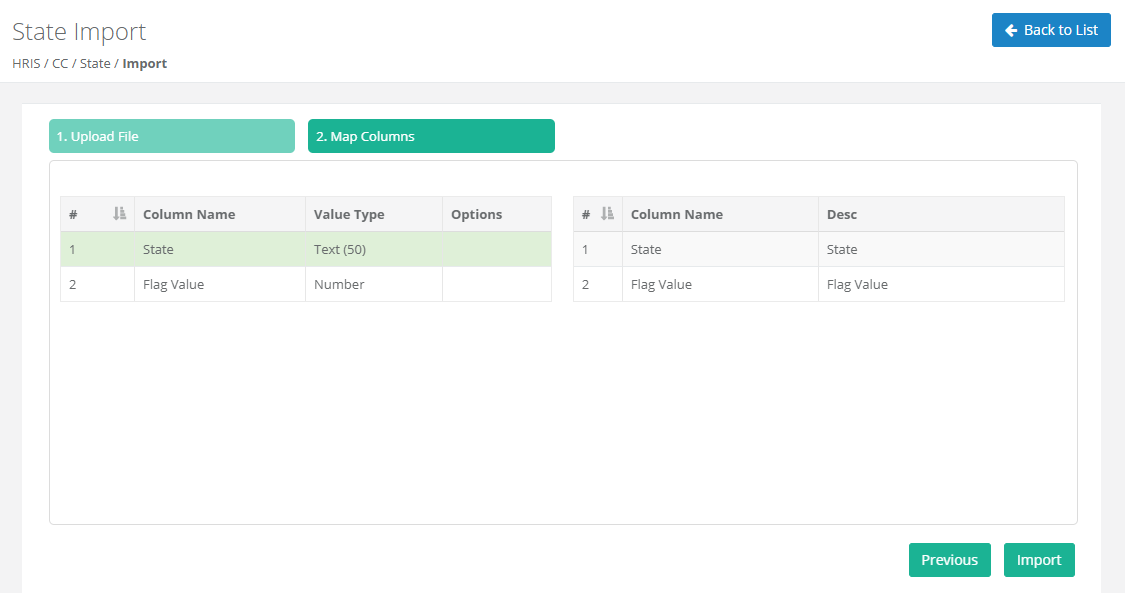
- Map respective fields -> Click on Import Button.
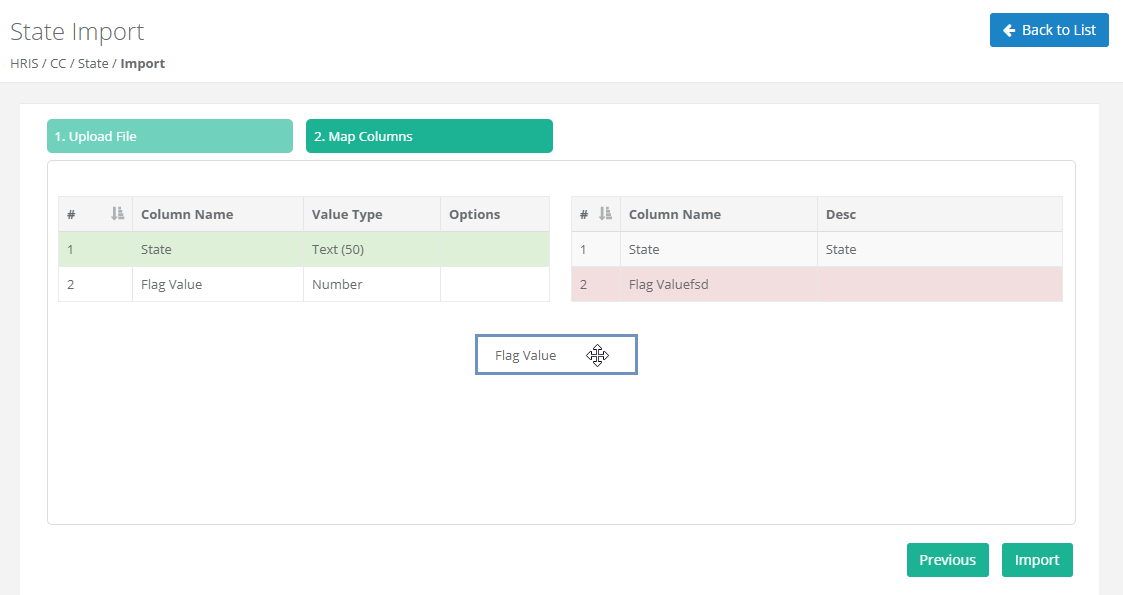
Note :
If Column is not Map will be shown in Red Color and Mapping will be done by drag and drop feature.
3. Delete
User can delete multiple State in single click on selection.
HRIS -> CC -> State -> Delete Button
State Creation and Modification Log can be seen in Detail View .