
Grade Master Detail
It is one of the first and very important modules of the Spine Payroll System. Payroll-NX concept of Grade allows an additional dimension to enhance the functionality of the complete Payroll-NX Activity.
As Grade helps in some of the Major Core Areas of the Payroll Activity, so while defining grade one has to take at most care that all the below topics are addressed. This helps in enhancing the functioning of payroll system to provide the best output as desired by the user.
A Grade helps in :
- Grouping the payroll details in many of the modules.
- Choosing the calculation base.
- Defining the Structure of Calculation (Salary head Settings).
- Defining the Professional Tax Slab.
- Entry of Salary Structure of Multiple Employees at a time for the particular Grade.
- Managing Leave Period.
- Managing Reimbursement Period.
- Running the Salary Process.
User has to define different Grades as per the gradation of allowances and deductions availed to the employees or the current gradation system of the organization. The user can define the basic rates of a particular Grade, which will affect the basic salary of all the employees under that Grade if Grade wise standard basic amount is applicable. User can also edit basic amount of an individual employee through Employee Salary Structure Single / Multiple.
For E.g. Staff, Workers, Managers, etc. Grades can be created through this module.
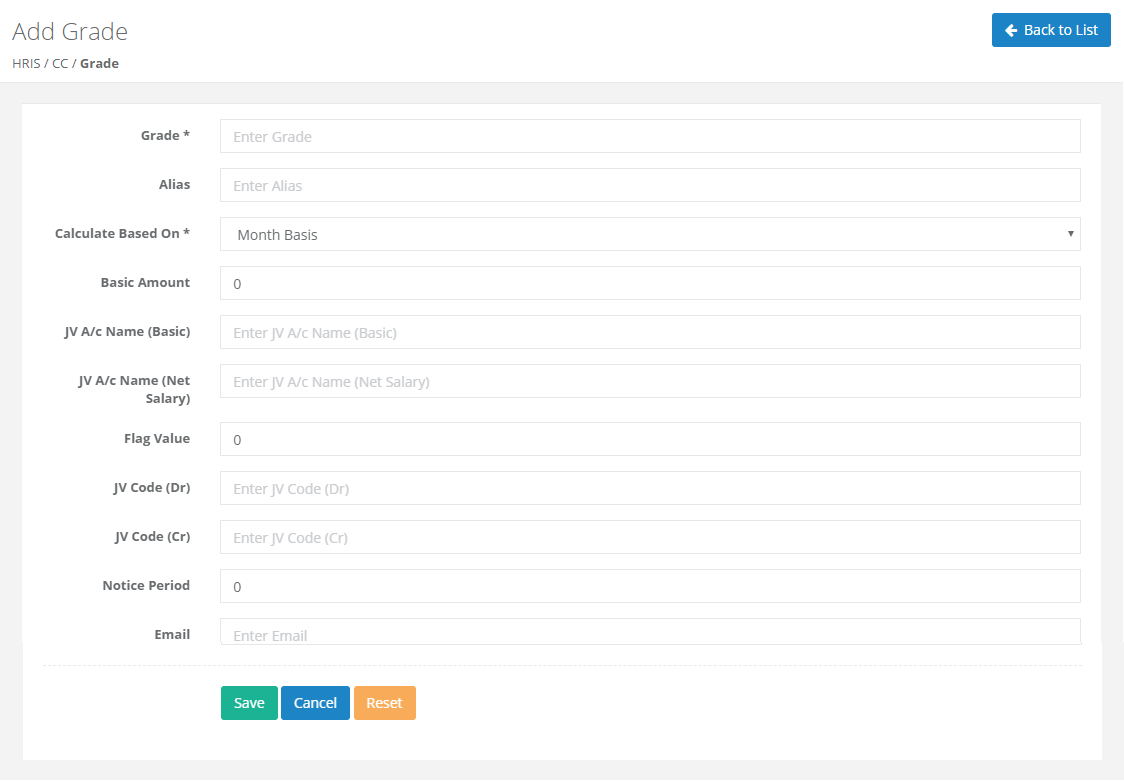
The Grade Module contains following listed fields :
1) Grade
2) Calculate Based On
3) Flag Value
4) Basic
5) Notice Period
6) Remark
- Grade
User has to input Grade Name. (This is mandatory field in Grade Master)
- Calculate Based on
There are various different method provided for calculation as listed Below :
a) Month Basis
b) Annual Basis
c) Do not Consider Weekly Off / Paid Holiday
d) Do not Consider Weekly Off:
e) 30 Days as Base
f) Hourly Payment
g) 26 Days as Base
1.Month Basis : This option will calculate the basic salary and all the allowances on Month basis. (e.g. If Fixed Basic of the Employee is Rs. 5000/- then the calculation will be (5000/(Total Days of the Month))*Days Paid.
2.Annual Basis : This option will calculate the basic salary and all the allowances on Annual / Yearly basis.
For E.g. If Fixed Basic of the Employee is Rs. 5000/- then the calculation if the person in absent will be (5000- (((5000*12)/365)*Absent Days))
3.Do not Consider Weekly Off / Paid Holiday : This option will calculate the basic salary without considering weekly off and Paid Holiday in present days.
4.Do not Consider Weekly Off : This option will calculate the basic salary without considering weekly off in present days.
5.30 Days as Base : This option will calculate the basic salary, allowances, Leave without Pay (LWP) and absent amounts on 30 Days basis even if the month is of 31 days.
For E.g. If Fixed Basic of the Employee is Rs. 5000/- then the calculation if the person in Absent will be (5000-((5000/30)*Absent Days))
6.Hourly Payment : This option will calculate the basic salary and all the allowances on the basis of hours defined in Shift 3 Column at the time of processing the salary.
7.26 Days as Base : This option will calculate the basic salary, allowances, Leave without Pay (LWP) and absent amounts on 26 Days basis even if the month is of 30 or 31 days.
For E.g. If Fixed Basic of the Employee is Rs. 5000/- then the calculation if the person in Absent will be (5000-((5000/26)*Absent Days))
- Flag Value
User can input the value of flag for each grade defined and same can be utilized in formula defined in Salary Head. Using these flag value user can control the Payment or Deduction or Provisional Calculation for any head as per the Grade Master.
- Basic
User can utilize this field by input of Basic Amount if the structure of calculation is defined in such a way that all the employees in particular grade have common Basic.
- Notice Period
This Feature is utilize to provide grade wise notice period to particular Grade Employee. It reflect in Final and Actual Settlement of Employee.
- Remark
User can add Remark from here.
Add/Import/Delete Master
1. ADD
For adding Single Entry User can add through Grade Master Create button.
HRIS -> CC -> Grade -> Create Button -> Enter Grade Name -> Fill the Required Fields -> Save

2. Import
For adding Multiple Entry User can add through Grade Master Import button User can Import Employee Master or can Update existing data by selecting option 'Update', as shown in below Figure.
- Prepare file for data as mentioned in the sample file, save the excel file in .csv or .txt format.
- HRIS ? CC ? Grade ? Import Button
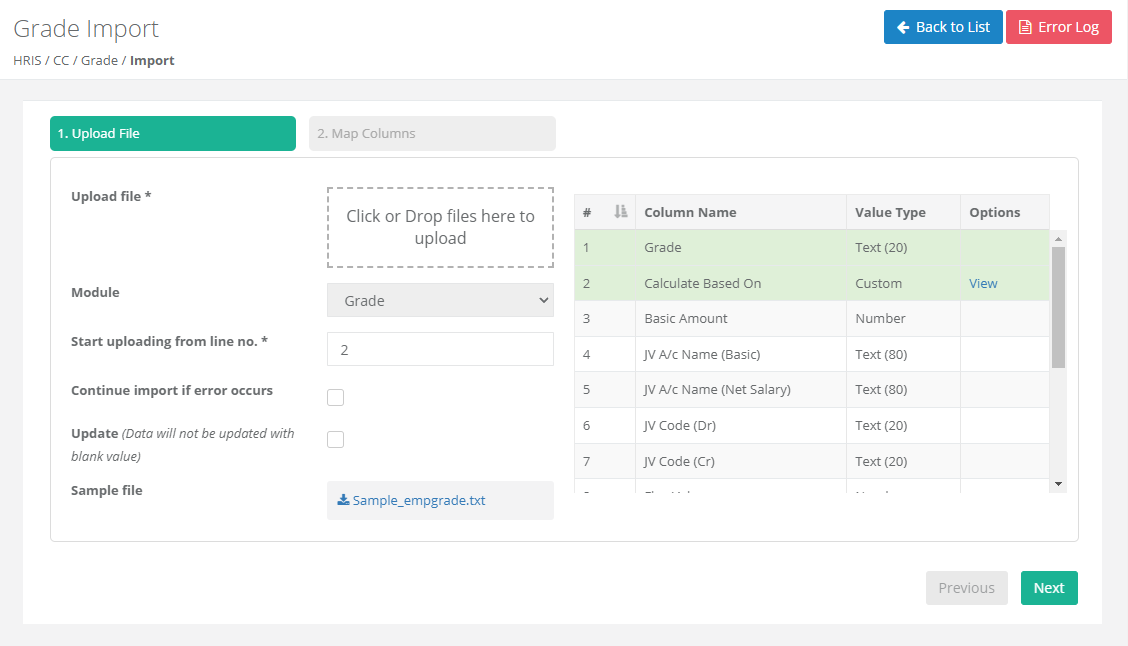
- Select file to import as prepared .csv/.txt ? Start Uploading from line no. 2 ? Next button
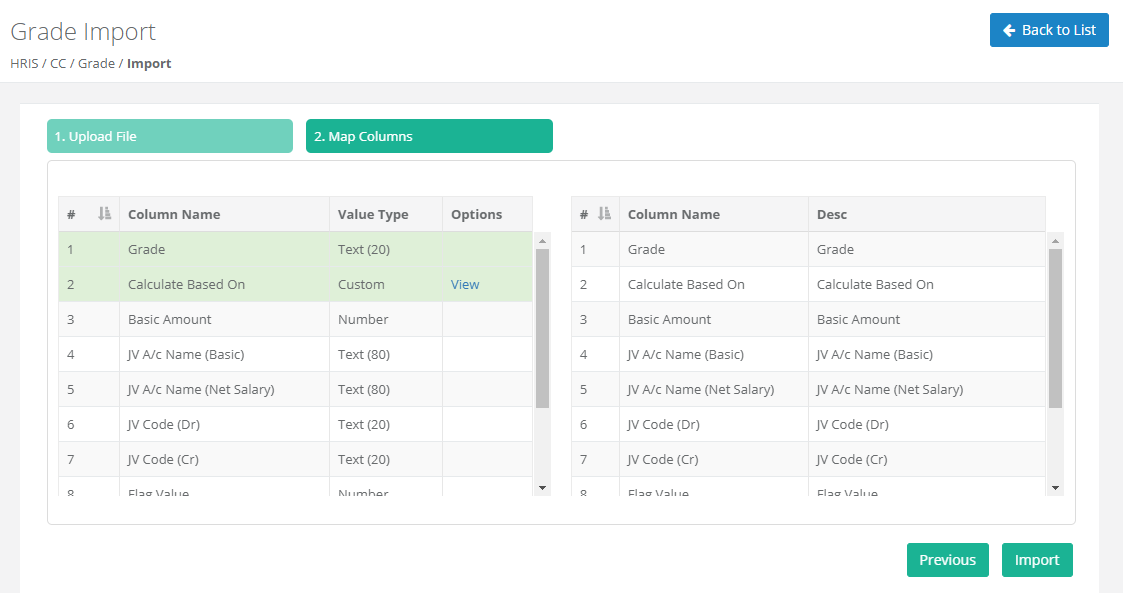
- Map respective fields -> Click on Import Button.
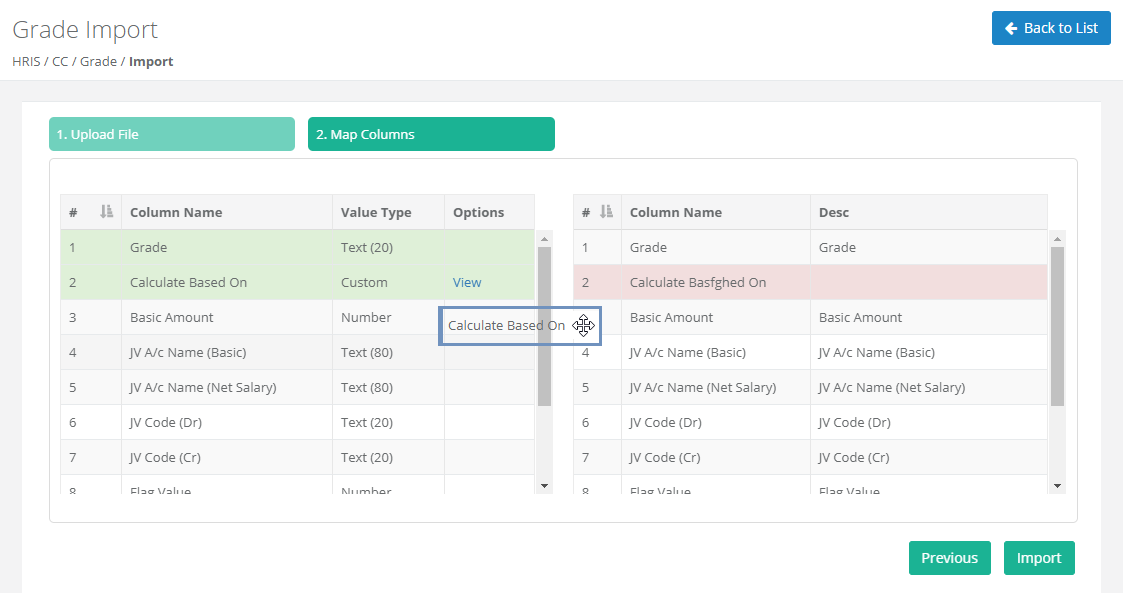
Note :
If Column is not Map will be shown in Red Color and Mapping will be done by drag and drop feature.
3. Delete
User can delete multiple Grade in single click on selection.
HRIS -> CC -> Grade -> Delete Button
Grade Creation and Modification Log can be seen in Detail View .